[ App design ]
Mobile app design guide: what the platform rules really say
Apple's 44 pt and Google's 48 dp are floors, not targets, and neither equals the 9.2 mm the main one-thumb study recommends for a single button. Size the one main action up, ask for permissions once and in context, design the wait by its length, and plan the account deletion screen the stores require.
By LAIN13 min read
Most mobile app advice is a list of numbers: 44 points, 48 dp, five tabs. This guide starts from what those numbers measure, where they come from and where they disagree, because that decides whether a rule helps on a real phone. The short version: the platform sizes are floors, a permission prompt can be spent only once, and waiting is a state you design by its length.
Touch targets are not a physical size
A point (pt) and a density-independent pixel (dp) are units, not lengths. Steven Hoober, who has studied how people touch phones, wrote in 2013 that 44 pixels is not a physical size. Here are the common numbers turned into millimetres on two phones, using each phone's published pixel density (460 ppi at 3x for an iPhone 15, 326 ppi at 2x for an iPhone SE, third generation).
| Source | Number | iPhone 15 | iPhone SE |
|---|---|---|---|
| Apple HIG, minimum control size on iOS | 28 x 28 pt | 4.6 mm | 4.4 mm |
| Apple HIG, default control size on iOS | 44 x 44 pt | 7.3 mm | 6.9 mm |
| Parhi, Karlson and Bederson (2006), no significant error difference for repeated taps from | 7.7 mm | 46.5 pt | 49 pt |
| Same study, recommended for a single button | 9.2 mm | 55.5 pt | 59 pt |
Android is harder to pin down. By definition 1 dp is one pixel on a 160 dpi screen, so 48 dp is 48 / 160 inch, which is 7.6 mm. Google's accessibility help says a 48 dp target is "about 9 mm" regardless of screen size, and an older Material page called that an average. Amazon's documentation for Fire tablets gives the honest answer: it depends on the device, and one tablet gave 8.6 mm for 48 dp. Measure your own test phones with a ruler.
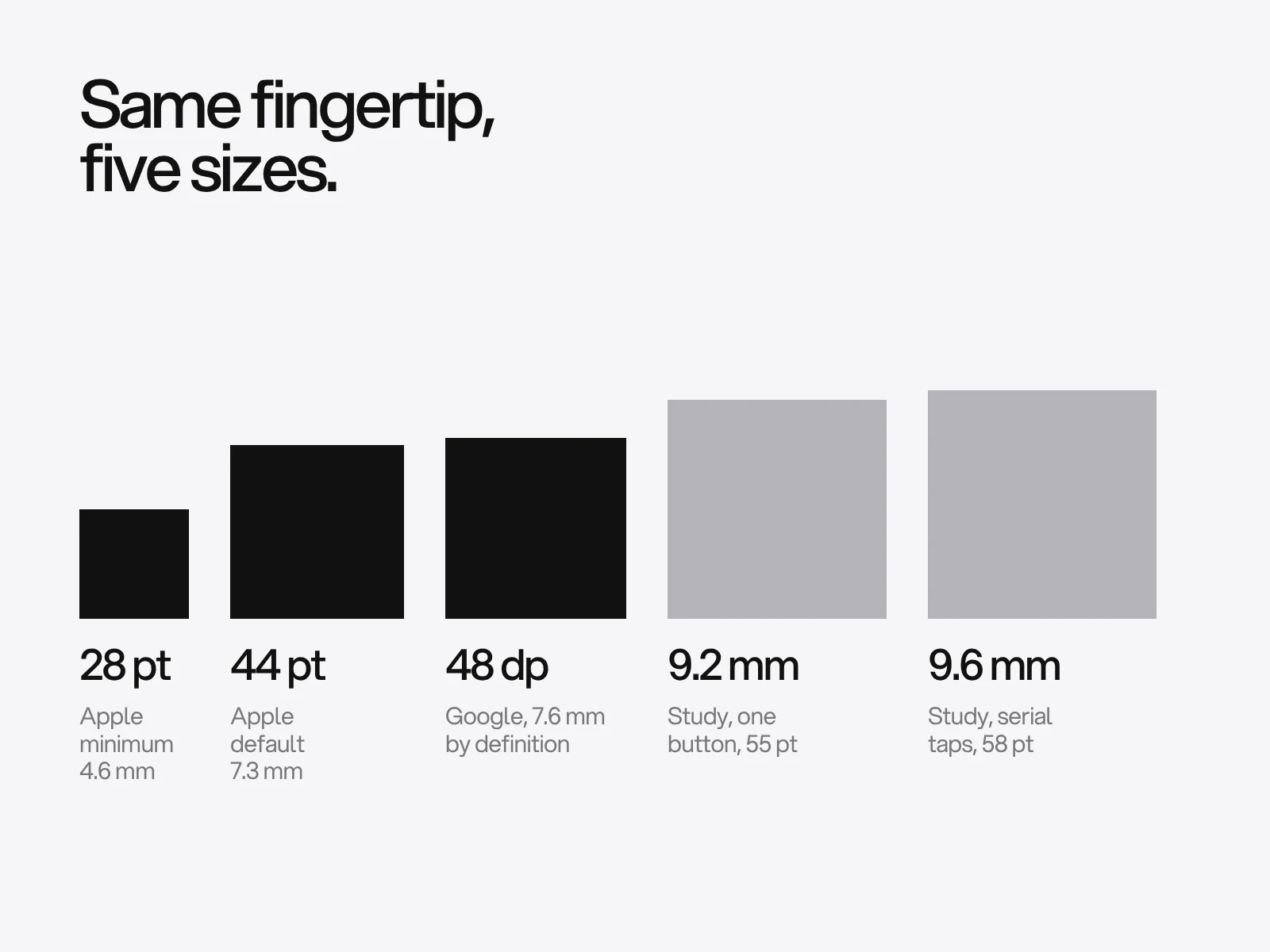
What the table says
- Apple's own pages disagree. The Design Tips page says controls should measure "at least 44 x 44 points". The Accessibility page of the HIG lists 44 pt as the default and 28 pt as the minimum for iOS and iPadOS, and asks for about 12 pt of padding around controls with a bezel and about 24 pt around those without, saying spacing is as important as size. Design to 44, and treat 28 as the least a dense control may ever be, never as a goal.
- Both platform sizes sit at the study's floor, not at its recommendation. Parhi and colleagues tested one-thumb use of small touchscreens in two phases, single targets such as buttons and checkboxes, then serial taps such as typing. Error rates stopped differing significantly at 9.6 mm for single targets and 7.7 mm for serial taps, and the authors recommended 9.2 mm and 9.6 mm. NN/g condenses this to a 1 cm minimum. I could read the abstract but not the full paper, so the sample size is not verified.
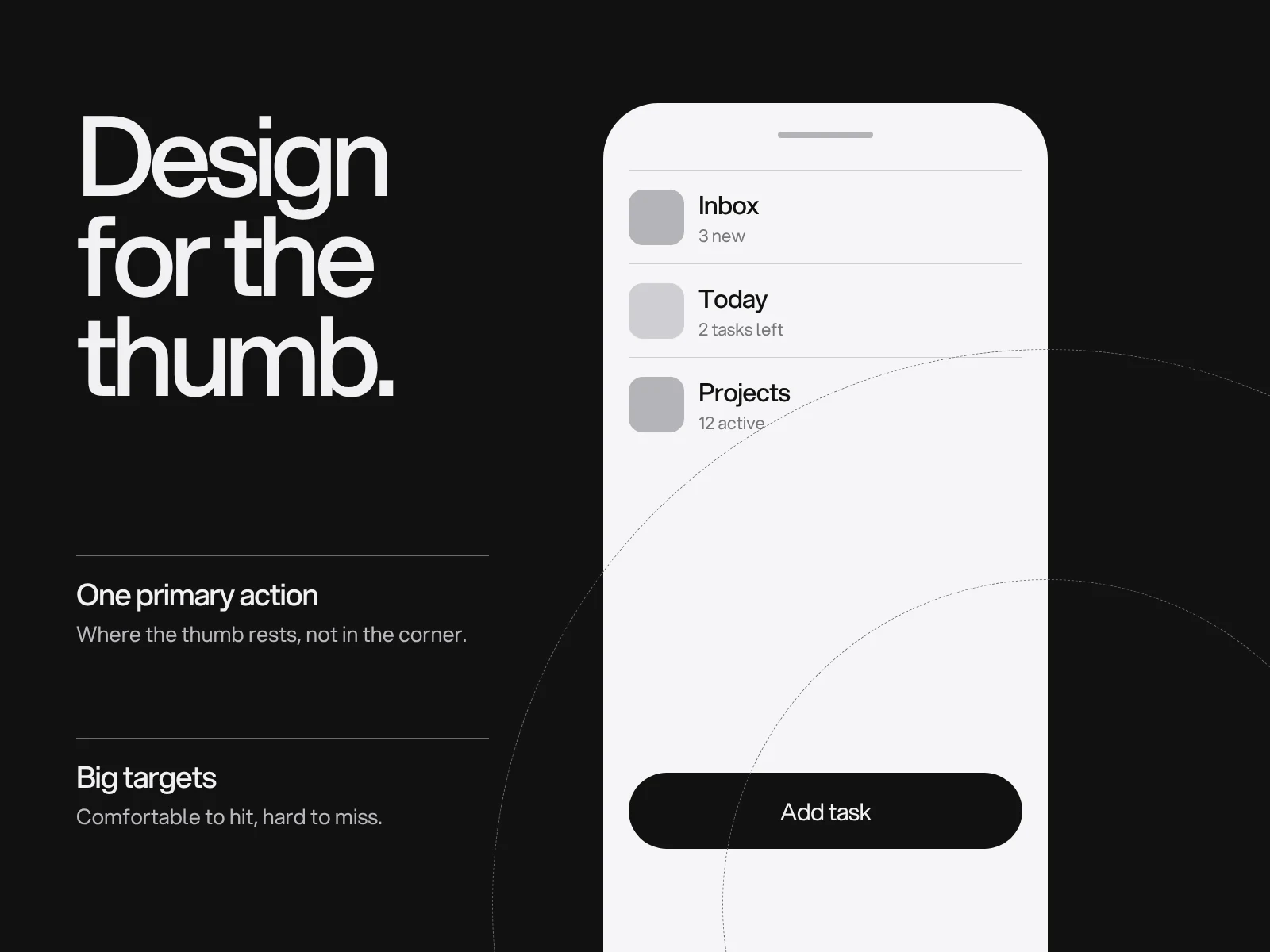
- A usable rule: treat 44 pt and 48 dp as the floor for everything tappable, and make the one main action of a screen and anything used on the move 56 to 60 pt or dp (about 9 to 10 mm). NN/g adds that targets should be larger for people who are walking or driving.
- Visible size is not hit size. Google's own example is a 24 dp icon whose padding makes it a 48 dp target. In Jetpack Compose the system expands small targets to 48 dp at the touch layer, but the layout does not reserve that room unless the component uses
minimumInteractiveComponentSize, so two small icons side by side can have overlapping touch areas. Check this in the build, not in the design file.
Worked example: how many buttons fit a row
With 48 dp targets, 8 dp gaps and 16 dp side margins, the number that fit is floor((width - 32 + 8) / 56). At 320 dp that is 5 (272 dp used). At 360, 393 and 412 dp it is 6 (328 dp used). A toolbar with six icons drawn on a 393 dp mockup therefore has no room on a 320 dp device, and large display-size settings narrow the usable width further. Decide now which icon moves into an overflow menu.
Thumb reach: what was actually measured
The thumb zone diagram comes from observation, and the observation is smaller than the diagram. In his 2013 study Hoober watched people in streets, cafes and on transit for two months: 1,333 observations, of which 780 were touching the screen. Among those, 49% held the phone in one hand, 36% cradled it in one hand and touched with the other, and 15% used two hands. Of the one-handed group, 67% used the right thumb and 33% the left. Tablets were excluded and the largest phone was a Galaxy Note 2. His main finding was that grip is not fixed: people switched grips, sometimes within seconds.
Two consequences hold today. Do not design for one hand only, because the one-handed group was the largest but not a majority. And do not assume the right thumb, because a third of one-handed users used the left. The study is from 2013, so it says little about today's larger phones, and Hoober later revised his guidance.
| Kind of action | Where it goes | Why |
|---|---|---|
| Frequent and safe (switch section, add, filter) | Lower half, inside the arc of either thumb | Cheap to reach, cheap to undo |
| The main step of a flow (Continue, Pay) | Bottom, wide, 56 pt or more | Wide targets forgive a thumb that lands off centre |
| Destructive or hard to reverse (delete, send money) | Away from the thumb's rest position, with a confirmation or undo | A slip should not cost anything |
| Sliders, carousels, swipeable rows | Not in the first strip of the screen edge | The system claims the edge for back |
The last row is a hard limit. On Android's gesture navigation, an inward swipe from the left or right edge is Back, and swipes at the bottom are Home and app switching. Apps cannot opt out of the bottom ones, and the edge ones can be excluded only for specific controls with setSystemGestureExclusionRects (drawers and seek bars do it automatically). Apple's guidance is to keep a visible Back button even where a swipe shortcut exists. A horizontal slider that starts at the edge will fight the system, and the system wins.
Permissions are asked once
A permission prompt is a scarce resource, and the two platforms spend it differently.
- iOS: once the person has answered the system alert, it is not shown again. An Apple DTS engineer answered "No" to whether it can be repeated. The only recovery is Settings.
- Android 11 and later: tapping Deny twice for the same permission counts as "don't ask again", and the system stops showing the dialog. For location, microphone and camera there is also Only this time, which grants a one-time permission that ends with the session.
The platforms also disagree about explaining first. Apple's HIG allows a screen before the system alert only if essential context is needed, with a single button titled Continue or Next, no cancel, no look-alike of the alert and no reward for allowing. Android's guidance says the opposite about exits: an educational screen must include a way to cancel, and the app should degrade gracefully and accept the answer rather than send people to Settings. Follow each platform on its own, and keep the screen honest on both.
| Situation | What to do |
|---|---|
| The feature obviously needs it (a scan button needs the camera) | Ask on the tap, nothing before it |
| The benefit is not obvious (notifications, always-on location) | Ask at the first moment the benefit is visible, with a line of context. On iOS the pre-screen has one Continue button |
| Denied, and the feature is optional | Say what is unavailable in the place where the result would appear, and keep the rest working |
| Denied, and the person taps the feature again | On iOS offer a button that opens Settings. On Android explain what is missing and let them decide |
| You want location for one task | Apple's location button grants one-time access without a standing permission |
Test it properly. On Android, adb shell pm clear-permission-flags PACKAGE PERMISSION user-set user-fixed resets a permanent denial. On iOS, reinstall the app, because the answer survives launches.
The wait is a design problem
Nielsen's three limits are old but have held: about 0.1 second feels instant, about 1 second keeps the train of thought, and about 10 seconds is where attention is lost. They come from his 1993 book, drawing on research from 1968. NN/g's later guidance turns them into choices.
| Wait | Show | Wrong version |
|---|---|---|
| Under 1 second | Nothing extra | A skeleton or spinner that flashes and feels jarring |
| 1 to 10 seconds | A skeleton for a whole screen, a spinner for one module (a card, a video) | A skeleton of only the header and footer, which looks broken |
| Over 10 seconds | A progress bar with an estimate, and a way to do something else | An endless spinner |
Apple's loading guidance adds three habits: show something as soon as possible instead of a blank screen, let people keep using the app while content loads, and show a determinate indicator when you know the duration. The evidence for skeleton screens is thin: NN/g cites one study and does not summarise it, so treat skeletons as a sensible convention, not a proven gain.
Store rules that become screens
Two rules decide screens you might otherwise forget.
- Account deletion. Apple's guideline 5.1.1(v) says an app that supports account creation must offer account deletion within the app, and an app without significant account-based features should work without a login. Google Play requires an in-app deletion path and also a web link for people who have uninstalled the app, with the Data safety form answers due by 7 December 2023 and enforcement after 31 May 2024. A 2025 USENIX study of 863 Play apps found only 8.5% offered both.
- Login choices. Apple's guideline 4.8 says an app that uses a third-party or social login for the primary account must also offer an equivalent login that limits data to name and email, lets people hide their email and does not track them for advertising, with listed exceptions such as an app that uses only its own sign-in.
Design the delete flow with the same care as sign-up: in account settings, a plain explanation of what is removed and what is kept, a confirmation, and a web page for the Play requirement.
Where this goes wrong
- Right sizes, still mis-taps. Cause: the padding was drawn in the design file but not built, or touch areas overlap. Detect: record taps in a prototype session and watch for second attempts. Fix: build the hit area, add the gap, and run Accessibility Scanner on Android and Accessibility Inspector on iOS.
- Permission asked at launch, denied. Cause: the one prompt was spent before the person saw a reason. Detect: compare prompts shown with prompts accepted. Fix: move the ask to the moment of use, and rewrite the purpose string as a specific sentence (Apple's example: "The app records during the night to detect snoring sounds.").
- Loading that looks like failure. Cause: a frame-only skeleton, or a spinner with no end. Detect: time the slowest realistic request on a slow connection. Fix: pick from the table by duration, and give a way out after 10 seconds.
- Edge controls that do not respond. Cause: a control sits in the system gesture zone. Detect: test on a device with gesture navigation, not only three-button navigation. Fix: move it inward or exclude only its rectangle.
- A thumb diagram applied to a tablet. Cause: the 2013 study excluded tablets. Fix: for large screens, test where people actually hold the device.
Test before you build
Nielsen and Landauer's model says each tester finds about 31% of problems, so n testers find 1 - 0.69^n: three find 67%, five find 84%, ten find 98%. Faulkner's 2003 study sampled from 60 real users and found that groups of five found anywhere from 55% to 99% of problems, with 80% as the worst case at ten and 95% at twenty. The lesson is not "five is enough" but "run small rounds and fix between them". UX research for startups covers running them.
A review to run before development
Score each line pass or fail. Fix every fail before handoff.
- Every tappable element has a hit area of at least 44 x 44 pt (iOS) or 48 x 48 dp (Android), with Apple's padding or Google's 8 dp between neighbours.
- Each screen has one main action, at 56 pt or dp or more.
- No slider, carousel or swipeable row starts in the system edge zone.
- Each permission has a named screen where it is asked, a sentence of purpose, and a designed state for denial.
- Each screen has loading, empty, error and offline states, and each loading state names its duration band.
- Text still works at 200% (Apple asks for support up to at least 200%) and is never below 11 pt on iOS.
- If accounts exist, there is a deletion path, a web link and a revoke step for any social login.
- Handoff covers density, text scaling and system insets: see app design handoff.
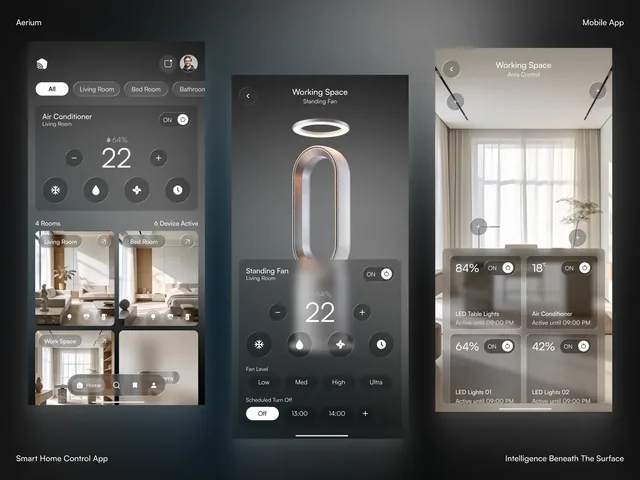
As a small example from our own work, the Aerium app has three screens: the rooms, each a photograph with a few switches over it; one level in, the fan's own screen; and the room itself with each device pinned where it stands. On the fan's screen the dial and its four modes share one card of frosted glass, which gives its main job one obvious place. See Aerium for the screens. Navigation choices are covered in mobile app navigation patterns.
Working with LAIN on an app
App and dashboard projects at LAIN typically take 8 to 12 weeks and follow the same four phases as every project: alignment, creative development, refinement and final delivery. If you have an app idea, or an existing one that is hard to use, send us a brief.
Frequently asked questions
What is the minimum touch target size for a mobile app?
Apple's Human Interface Guidelines list 44 x 44 pt as the default control size on iOS and 28 x 28 pt as the minimum, with about 12 pt of padding around controls that have a bezel. Google recommends at least 48 x 48 dp with 8 dp between targets. Both are about 7 mm, while the 2006 one-thumb study recommended 9.2 mm for a single button.
Is 48dp really 9 mm?
Not exactly. A dp is defined as 1/160 inch, which makes 48 dp 7.6 mm. Google's accessibility help says about 9 mm as an average, and Amazon measured 8.6 mm on one Fire tablet. The real size depends on the phone, so measure on your test devices.
Can I ask for a permission again after someone says no?
On iOS the system alert is shown once, and Apple's answer on its developer forums to repeating it is a flat no, so the only route is Settings. On Android 11 and later, tapping Deny twice for the same permission counts as "don't ask again", and the dialog stops appearing.
Should I show an explanation screen before a permission prompt?
Ask in context first. On iOS, Apple allows a pre-alert screen only for essential context, with a single Continue or Next button, no cancel and no imitation of the alert. On Android, an educational screen should include a way to cancel, and the app should degrade gracefully if the answer is no.
When should I use a skeleton screen instead of a spinner?
NN/g advises neither under about one second. From one to ten seconds, use a skeleton for a whole screen and a spinner for a single module such as a card or video. Over ten seconds, use a progress bar with an estimate of the duration.
Does my app need a delete account button?
If people can create an account in the app, yes on both stores. Apple's guideline 5.1.1(v) requires deletion within the app, and Google Play requires an in-app path plus a web link where people can request deletion without reinstalling the app.
Sources and fact check
Facts in this article that come from outside LAIN were checked on 28 Oct 2026 against:
- Apple: Human Interface Guidelines, Accessibility
- Apple: Human Interface Guidelines, Privacy
- Apple: Human Interface Guidelines, Onboarding
- Apple: Human Interface Guidelines, Loading
- Apple: App Store Review Guidelines
- Apple Developer Forums: Repeat UNUserNotificationCenter.requestAuthorization
- Google: Android Accessibility Help, Touch target size
- Android Developers: Grids and units
- Android Developers: Request runtime permissions
- Android Developers: Android 11 permissions changes
- Android Developers: Gesture navigation
- Google Play Console Help: App account deletion requirements
- Parhi, Karlson and Bederson: Target size study for one-handed thumb use on small touchscreen devices (MobileHCI 2006)
- Steven Hoober, UXmatters: How do users really hold mobile devices?
- Nielsen Norman Group: Touch target size
- Nielsen Norman Group: Response times, the 3 important limits
- Nielsen Norman Group: Skeleton screens 101
- Faulkner: Beyond the five-user assumption (Behavior Research Methods, 2003)
- USENIX Security 2025: No way to sign out? Non-compliance with Google Play's app account deletion requirements
- Amazon Developer: Button size and placement on Fire tablets
Timelines, services and process described here are LAIN's own, as set out on our About and FAQ pages.
[ Keep reading ]