[ Social media ]
LinkedIn company page design: logo, banner and About section
A LinkedIn company page is a credibility check, so design it for a stranger who has thirty seconds. Use a simple logo that survives a small square, a wide 6:1 banner with one message in the middle, a tagline that says who you help, an About text that leads with the point and one clear button. Preview it on a phone before you publish.
By LAIN6 min read
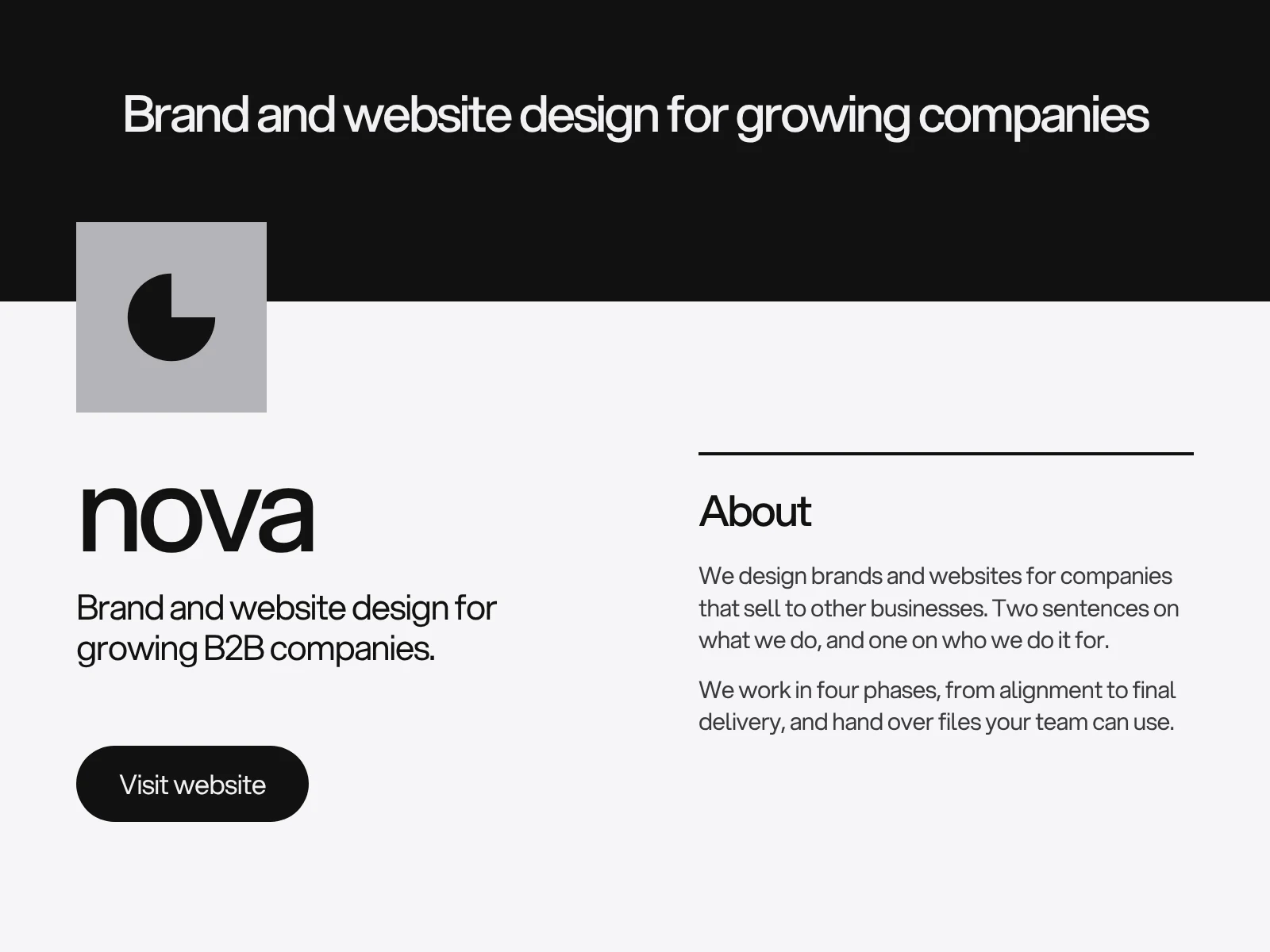
A LinkedIn company page is a credibility check. Someone gets your name in a message, an email or a meeting, and looks you up before they reply. In about thirty seconds they decide whether you look like a real, current, competent business. Design the page for that visitor: a clean logo, one clear banner, a tagline that says who you help, an About text that leads with the point and one obvious next step.
What a visitor checks first
A visitor usually wants to know four things:
- Is this a real company? A proper logo, a banner and a complete About section say yes. A blank banner and a default avatar say no.
- What do they do, and for whom? The tagline and the first lines of the About text answer this.
- Is it active? Recent posts show that someone is home.
- Where do I go next? One button, one link.
Everything below serves one of those four questions.
The logo: design for a small square
LinkedIn Help gives the logo as 400 x 400 pixels recommended, with 268 x 268 as the minimum, as a PNG or JPEG under 3 MB. The logo shows small, often in a feed next to a post, so what matters is how it reads at a thumbnail size.
- Use the icon or mark, not a long wordmark. A wide logo shrinks until the letters are unreadable. If your logo is a wide wordmark, make a square version for this use. Our logo file formats guide explains which versions to keep.
- Leave padding. Platforms crop and round corners. A logo that touches the edge of its square will look cut off.
- Check contrast on white and on dark. Feeds appear in light and dark modes, so a pale logo can vanish.
- Use the same file as everywhere else. The page, the website favicon and the email signature should look like one brand.
The banner: one message, centred
LinkedIn Help has listed the cover image as 4200 x 700 pixels, while many guides still quote 1128 x 191. Both are a 6:1 strip, so design at that ratio and export at the larger size. Guides disagree about how much is trimmed on phones and where the logo overlaps, so treat the edges as unsafe.
- Keep the message in the centre. A common rule of thumb is to keep text and key shapes within the middle 60 percent of the width.
- Keep the lower left clear. The logo sits over that corner on the page.
- Say one thing. A short line about what you do, a campaign, or a plain brand image. Not a paragraph, not a list of services.
- Use large type. The banner is displayed far smaller than 4200 pixels wide. Text that looks fine on your screen turns to dust on a phone.
- Change it with purpose. Update the banner for a launch or a season, and make sure the rest of the page still reads when it does.
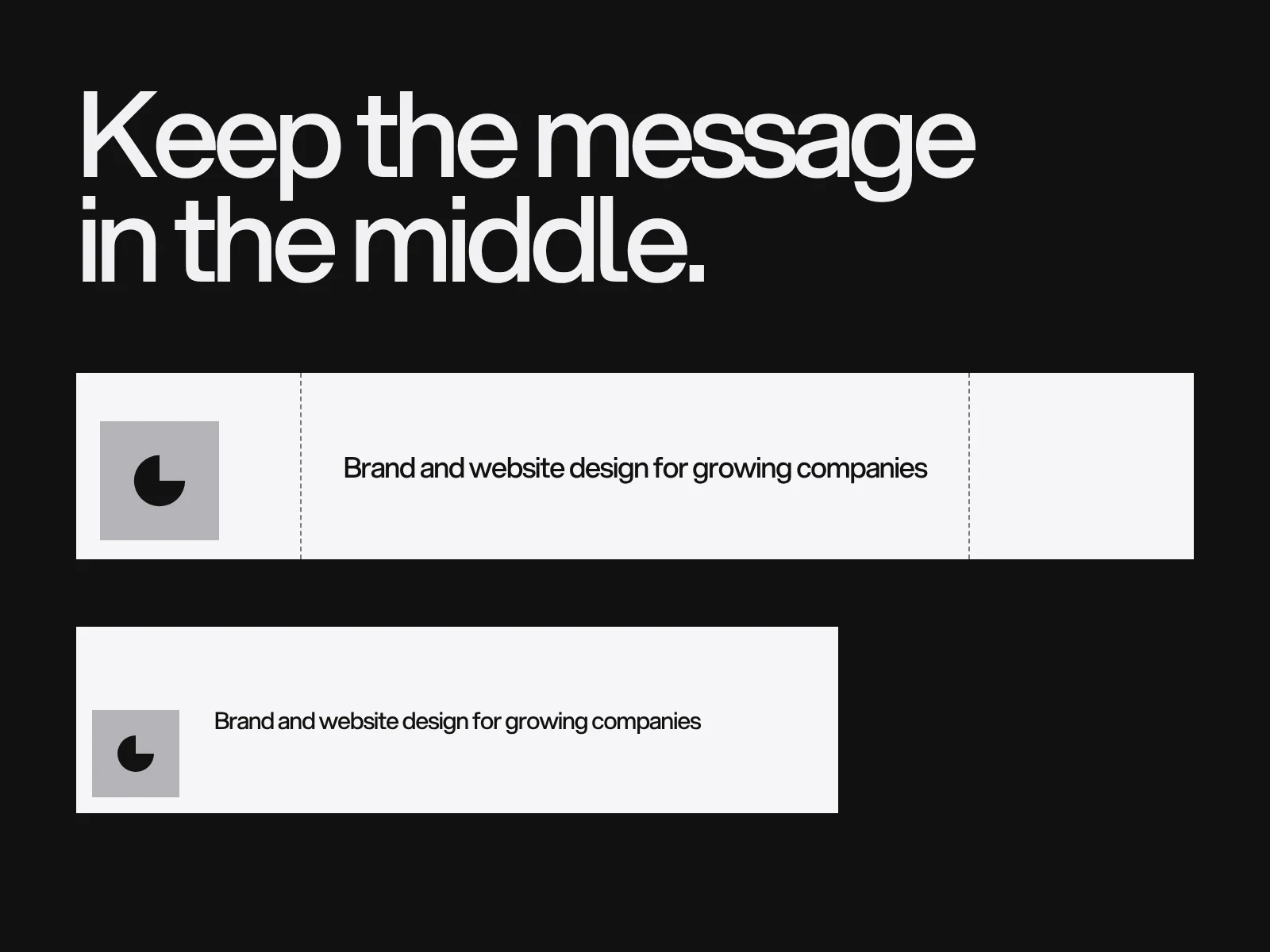
The tagline and About text
Tagline. One short line under the name: who you help and what you do for them. "Brand and website design for growing B2B companies" beats "Excellence in creative solutions". Guides cite a limit of about 120 characters, and the editor will tell you if you go over.
About. Guides cite a limit of 2,000 characters, but you do not need to use it. Long text gets skimmed or cut, so put the point in the opening lines. A structure that works:
- What you do and for whom, in two sentences.
- How you work, in one or two.
- Proof you can stand behind: types of clients, years, projects you may name.
- Where you are and how to reach you.
Write in the words your clients use, not internal jargon. Plain sentences, no stacked buzzwords.
One button, one link
LinkedIn lets a Page add a custom button. The Help Center lists options such as Visit website, Contact us, Learn more, Sign up and Register, and some are available only when your Page qualifies for them. Choose the one action you want most. For most service businesses that is Contact us or Visit website, pointed at a page designed to receive the visit. Add a tracking parameter to the link so you can see the visits in your web analytics.
If you are hiring, the Life tab is where you show the team and the work. If you are not, do not leave half of it filled in.
Posts: make the feed match the page
The page is the shop window, and the feed is what moves behind it. A few rules keep them in step:
- Reuse your social media templates so a LinkedIn post still looks like your brand, with colour, type and logo placement matching the page.
- Lead with substance. LinkedIn readers want something to learn: a project explained, a decision and the reason for it, a lesson.
- Write the first line for the feed. Only the opening shows before the "see more" cut.
- Do not paste an Instagram caption. The tone and the length belong to the channel.
Our social media style guide article shows where these rules live.
A checklist before you publish
- Logo is a square-safe mark, with padding, checked on light and dark.
- Banner has one message inside the central area, with the lower left corner clear.
- Preview checked on a phone and on a desktop.
- Tagline says who you help and what you do.
- About text puts the point in the first lines and uses your clients' words.
- One button, pointing to a page built for that visit.
- Website, email signature and page show the same logo and the same description.
- Three recent posts in the brand's templates, so the page is not empty.
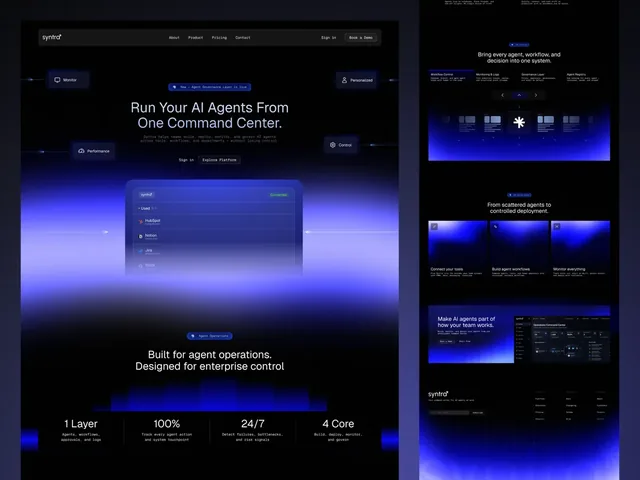
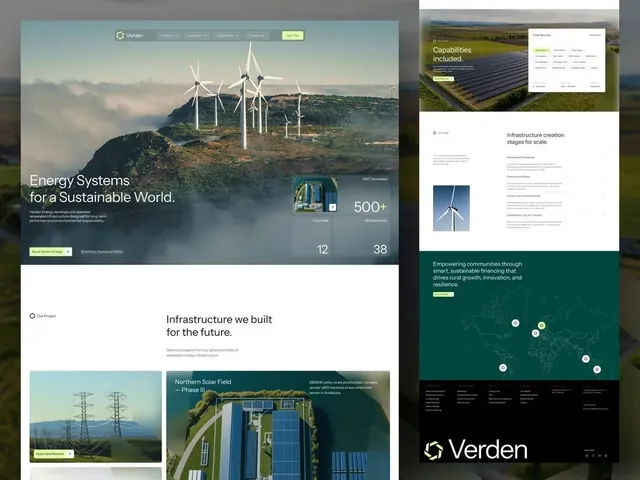
This is the kind of detail we set up in social media design and branding work, for example around the identities of Syntra and Verden. If your page is a default avatar and a one-line description, start a project and we will design it as part of the brand.
Frequently asked questions
What size should a LinkedIn company page banner be?
The cover image is a 6:1 strip. LinkedIn Help has listed 4200 x 700 pixels, and many guides quote 1128 x 191, the same ratio, as a PNG or JPEG. It is displayed much smaller, and phones can crop the edges, so keep text and key shapes in the middle and the lower left corner clear for the logo.
What size should a LinkedIn company page logo be?
LinkedIn Help recommends 400 x 400 pixels, with 268 x 268 pixels as the minimum, as a PNG or JPEG under 3 MB. Use a simple mark with padding around it, because the logo is shown small and the platform may crop or round the corners.
How long should a LinkedIn company page tagline be?
Keep it to one short line that says who you help and what you do. Third-party guides cite a limit of about 120 characters, and the Page editor will show the real limit, but shorter is almost always clearer.
What should I write in the LinkedIn About section?
Lead with what you do and for whom in two sentences, then how you work, proof you can stand behind, and where you are. Long text gets skimmed or cut, so put the point in the opening lines and use the words your clients use.
Which call-to-action button should a company page use?
Choose the single action you want most. For service businesses that is usually Contact us or Visit website. LinkedIn lists several options, and a few are only available to Pages that qualify, so check what your Page offers.
How often should I update the LinkedIn banner?
When something real changes: a launch, a campaign or a rebrand. A banner that is a year old is fine if it is still accurate. What matters is that the logo, banner, tagline and About text agree with each other and with your website.
Sources and fact check
Facts in this article that come from outside LAIN were checked on 28 Oct 2026 against:
- LinkedIn Help: Image specifications for your LinkedIn Pages
- LinkedIn Help: Add a custom call-to-action button to your Page
- Neal Schaffer: LinkedIn banner size and safe area
- Influencer Marketing Hub: LinkedIn character limits (third-party figures)
Timelines, services and process described here are LAIN's own, as set out on our About and FAQ pages.
[ From our work ]
[ Keep reading ]